


How to Split Shopify Orders Across Multiple Warehouses (3 Ways)
 Author: Joe
💡 Quick answer: Shopify splits an order by giving each item a fulfillment location. There are three ways to control which location gets which item:
- Change the location by hand on the order page. Ok for a few orders a day.
- Use Shopify order routing (Settings > Shipping and delivery > Order routing). Can work in some situations but it decides mostly from where you have stock.
- Use rules that look at each item (for example with Order Automator app). These send items to a location based on product tag, vendor, SKU, metafield, destination country and more, and can then request, fulfill or hold each part.
Most stores use #2 for normal orders and add #1 or #3 for the cases it can't handle.
In this guide
- How Shopify splits an order
- Before you start: checklist
- Method 1: Change the location by hand
- Method 2: Shopify order routing (built in, automatic)
- Method 3: Rules that check each item (Order Automator)
- Which method should you use?
- Common setups
- Things to watch out for
- FAQ
How Shopify splits an order
To split orders reliably, you need to know three things about how Shopify works:
- Every place that ships is a location. That includes your own warehouse, a retail store, a 3PL and Amazon MCF (if connected). When you connect a fulfillment service app (most 3PL apps, and marketplaces like Amazon), Shopify creates a location for it automatically.
- An order is made of one or more fulfillment orders. Each fulfillment order is a group of line items assigned to one location. "Splitting an order" just means the items end up in more than one fulfillment order.
- Inventory is tracked separately at each location. One location can't use another location's stock. Where you keep stock is the biggest factor in where Shopify sends an item.
Shopify already splits orders on its own when no single location has everything in stock. What it won't do on its own is split based on what the product is ("all digital items here, all pre-orders on hold, all FBA SKUs to Amazon"). For that you need a plan.
Before you start: checklist
- ✅ Every warehouse, 3PL and supplier that ships is set up as a location, or connected through its fulfillment service app.
- ✅ Each location that should ship web orders has Fulfill online orders from this location turned on.
- ✅ Products track inventory, and stock is entered at the location that actually ships them.
- ✅ Your shipping profiles have rates for every location, so checkout never shows a product as unavailable.
- ✅ You've decided what should happen when an item is out of stock everywhere: oversell from your main location, or hold the order.
Method 1: Change the location by hand
Best for low volume, one-off exceptions, or testing your setup.
- Go to Orders and open the order.
- In the Unfulfilled section, click ⋯ and then Change location.
- Select the items you want to move. You can move just some of them.
- Choose the new location and click Change location.
The items you moved become their own fulfillment order at the new location. Repeat for each warehouse.
Limits: It takes about a minute per order, it's easy to forget, and it doesn't send anything to the 3PL. You still have to request fulfillment or mark items fulfilled yourself.
Method 2: Shopify order routing (built in, automatic)
Best for stores that place stock carefully and want Shopify to pick the warehouse at checkout.
Go to Settings > Shipping and delivery > Order routing (you need 2 or more active locations). Shopify runs the rules from top to bottom, and each rule narrows down the result of the one above it. The built-in rules are:
| Rule | What it does |
|---|---|
| Use preferred locations | Ranks your locations (or groups of locations) in order of preference |
| Minimize split fulfillments | Prefers locations that can ship more, or all, of the order |
| Stay within the destination market | Keeps orders inside the market they ship to when possible |
| Ship from closest location | Picks the nearest location (best placed last) |
| Location metafields | Ranks locations by a value you set on each one, e.g. has_capacity |
How to send a product to a specific warehouse with order routing: stock that product only at that warehouse. Routing can't pick a location with zero stock unless it's overselling, so the item lands where the stock is. This is the native way to make "FBA SKUs go to Amazon, everything else ships from our warehouse" work.
Shopify Flow (included on most plans) has a Move fulfillment order action that can move a fulfillment order to another location after the order is placed.
Shopify Flow works for some automations but my team and I get questions and comments regularly about Flow not working for their ideal workflow. This is where our app Order Automator saves the day because you create the exact flows you need + it's customizable.
Limits of order routing:
- It decides when the order is created. If stock counts were wrong, nothing re-checks later.
- It looks mainly at stock and distance, not product details like tag, vendor or type. Custom routing rules (Shopify Functions) are only for Shopify Plus, and only on request.
- It only assigns a location. It doesn't send the request to the 3PL, mark digital items fulfilled, or hold pre-orders.
Method 3: Rules that check each item (Order Automator)
Best when the right warehouse depends on what the product is, or when you want each part of the order acted on automatically.
Order Automator checks every item against your fulfillment rules when a new order comes in. Each rule has:
- Conditions (about the item, order, shipping or customer): product tag, vendor, SKU, type, collection, product or variant metafield, inventory at a location, shipping country or state, order tags, and more.
- An action on the line items that match:
- Change location: moves the items to that location but doesn't fulfill them.
- Request fulfillment: moves the items to the fulfillment service's location (3PL, Amazon FBA, etc) and sends the request.
- Fulfill item: marks the items fulfilled (digital products, add-ons, etc).
- Hold fulfillment: puts the items on hold with a note.
Each action is written to the order timeline, so you can see what happened and when.
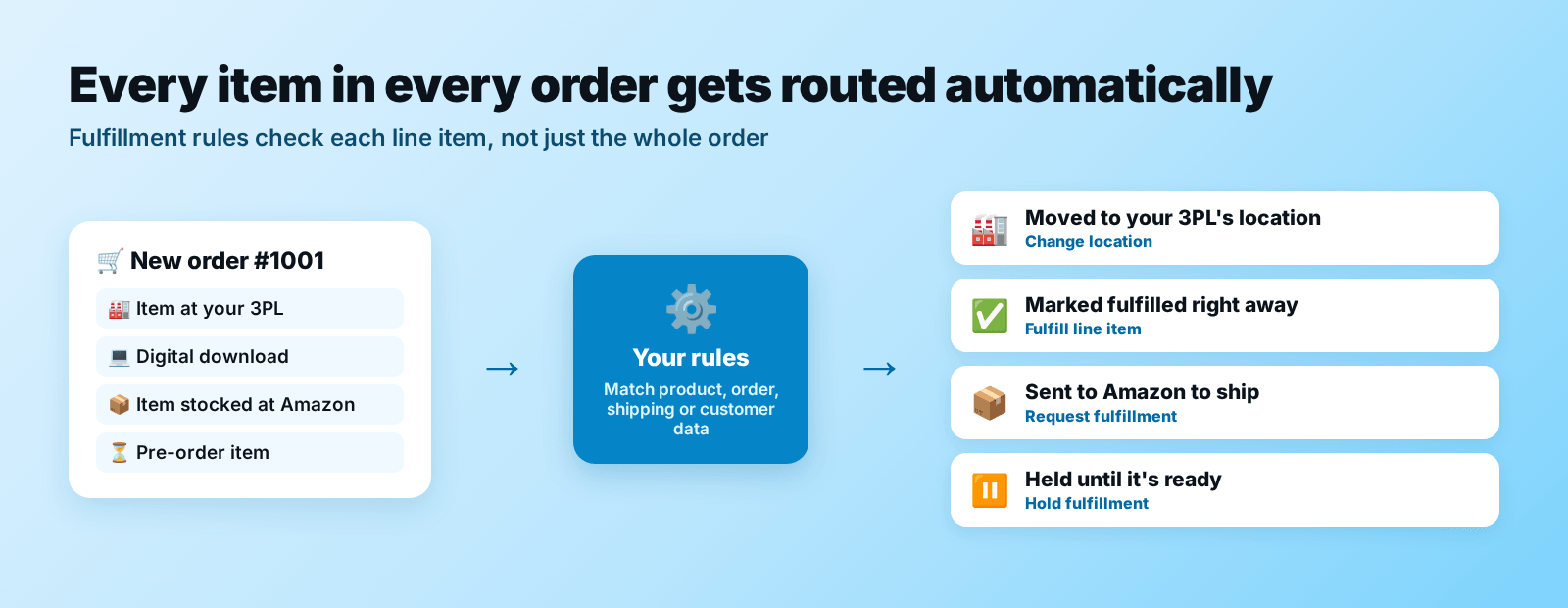
Example: one order, four destinations (the diagram above):
| Item | Rule | Result |
|---|---|---|
| Item at your 3PL | product tag contains 3pl → Change location (or Request fulfillment) to your 3PL | Moved to the 3PL |
| Digital download | product shipping is digital product → Fulfill item | Fulfilled right away |
| Ships to Germany | shipping country is equal to Germany → Request fulfillment to Amazon Germany | Sent to Amazon Germany |
| Pre-order item | product tag contains preorder → Hold fulfillment | Held until it's ready |
To email a supplier about their items as well, add a Tag Order rule with a notification attached (for example product vendor is Acme → email Acme).
Setup guide: Fulfillment Rules · All conditions: Rule Selectors
Which method should you use?
| Change by hand | Order routing | Item rules (Order Automator) | |
|---|---|---|---|
| Cost | Free | Free | Core plan $10 |
| Automatic | No | Yes, at checkout | Yes, after the order is created |
| Routes by stock and distance | You decide | ✅ | ✅ |
| Routes by product tag, vendor, SKU, metafield | You decide | ❌ (Plus custom rules only) | ✅ |
| Sends fulfillment request to 3PL / Amazon | ❌ | ❌ | ✅ |
| Fulfills digital items, holds pre-orders | ❌ | ❌ | ✅ |
| Good for | A few orders a day | Simple multi-warehouse stock | Mixed fulfillment (3PL + FBA + in-house + digital) |
They work together. Let order routing handle the default, and use rules only for the items that need special handling.
Common setups
3PL plus your own warehouse. Stock the 3PL's SKUs only at the 3PL location, and let order routing split the order. If the 3PL's app doesn't pick up orders by itself, add a rule: product assigned location is 3PL → Request fulfillment.
Amazon FBA plus a 3PL. Connect Amazon MCF so FBA becomes its own location with synced stock. Send German orders to Amazon (shipping country is equal to Germany → Request fulfillment to Amazon Germany) and everything else to your 3PL. Add newer rules for any exceptions, since the newest matching rule wins.
📦 Order Automator is an official Amazon MCF partner and a best in class solution for fulfilling Shopify orders using Amazon inventory.
Dropship supplier plus your own stock. Use product vendor is Vendor Name → Change location to the supplier's location, and add a notification so the supplier gets the order details or a PDF purchase order.
Physical plus digital in one order. Use product shipping is digital product → Fulfill item, so the download is completed right away and only physical items stay to ship.
Pre-orders mixed with in-stock items. Use product tag contains preorder → Hold fulfillment, so the in-stock items ship now and the pre-order waits.
International warehouse. Order routing's Stay within the destination market rule or Ship from closest location usually covers this. If you need hard rules, use shipping country is Canada → Change location to Toronto.
Things to watch out for
- Shipping charges at checkout. If items come from locations in different shipping groups, checkout can charge shipping per group or show customers "More shipping options". Check your shipping profiles before splitting a lot of orders.
- Multiple packages mean multiple tracking numbers. Each fulfillment gets its own tracking. Tell customers in your shipping policy that orders may arrive in more than one box.
- Post-purchase upsells and order edits. Upsell apps can hold an order for up to an hour. Wait for holds to be released before routing, so the split includes the final items (Order Automator can do this automatically).
FAQ
Can Shopify split orders between warehouses automatically? Yes. Shopify splits orders when no single location has every item in stock, and order routing decides which locations to use. To split by product type, tag or vendor without Shopify Plus, use an app like Order Automator with item-level fulfillment rules.
How do I send one product to a specific warehouse in Shopify? Stock that product only at that warehouse so order routing assigns it there. Or create a fulfillment rule that changes the location for that product's tag, SKU or vendor.
Does splitting an order charge the customer for shipping twice? It can. Shopify shows split shipping rates at checkout when items come from different shipping location groups. If both locations share a group and rate, the customer pays one shipping charge.
Can I change the warehouse after an order is placed? Yes. On the order page, click ⋯ > Change location in the Unfulfilled section. You can't do this while a 3PL has a pending or accepted fulfillment request for those items.
Can one item's quantity be split across warehouses? Yes. Since April 2025, Shopify can split the quantity of one item across locations at checkout when no single location has enough stock.
Do I need Shopify Plus to route orders by product? Only for custom order routing rules (Shopify Functions). On any plan you can route by product with stock placement, by hand, with Shopify Flow, or with an app like Order Automator.
🙋 Need help mapping your warehouses or fulfillment workflows? Contact us and we'll help you get dialed in.
🧙♂️ If you liked this post check out our flagship app Order Automator.
Order Automator is a Shopify app that automates workflows, streamlines fulfillment, and helps boost sales. Most stores can benefit from at least 1 feature, even with the Free plan. 👍
About the Author:
Joe has built successful companies, owned a Shopify store for 7 years, ran a Shopify optimization agency, is the founder of Order Automator and Product Automator, and has been named a Shopify Expert. Outside of tech he's into nature, travel, trees, books, and adventures with his family. 🏕🌎🌞
Connect on LinkedInMost Popular Posts


Use Cases: How to Improve Your Shopify Workflow with Order Automator
March 7, 2026 (updated)
Originally published: Nov 28, 2024


How to Connect Shopify to Amazon for Automatic Fulfillment Using MCF / FBA
August 16, 2026 (updated)
Originally published: Apr 30, 2024
Recent Posts


How to Connect TikTok Shop to Shopify (US Guide)
Sep 22, 2026
👋 About Us
We make Shopify apps, custom plugins, and automated solutions.
We also have years of experience working with and managing Shopify stores.
Our mission is to save people time so they can focus on what's important in their work, business, and life.
Contact us if you run a Shopify store and would a free workflow audit. 👍
💾 Our Shopify Apps
Use Order Automator to automate order workflows, connect marketplaces like Amazon and TikTok, and increase revenue.
It's customizable, and you can request specific functionality for your workflow.
Product Automator has a small suite of features to help organize your products and collections + increase your conversion rate.
🚚 Automate Fulfillment on Shopify

Using Amazon logistics is a smart way to auto fulfill your Shopify orders.
See our Amazon MCF guide for stats, pricing, tips, and setup instructions.
Order Automator is an official Amazon MCF partner and reviewers say it's the easiest way to connect Amazon and Shopify for fulfillment. If you'd like more info contact us.
👕 Best Print on Demand App

Printful is a free Shopify app that allows you to easily create print on demand products to sell in your store.
We've used it with Shopify stores + our merch and think it's great. ✊
You can sell mugs, t-shirts, bags, posters, and a lot more, without storing any inventory or doing any shipping.
They ship globally and give you a quick way to add merch and accessories to your online store.
Any thoughts?